Navigation

Register New Clients


  1. Go to one of the following locations to register a new client.
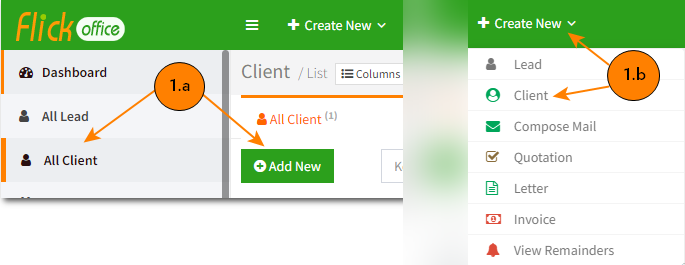
    1. Flick Office > All Client. Click Add New.
    2. Flick Office > Create New. Select Client.

    3. Flick Office > Lead > Lead Summary > Convert to Client. (Note: Only applicable for leads)
  2. You will be redirected to the Register page.
    1. General Info: Fill in the required fields with the necessary information.
    2. Admin Note/Remark: Admin can either choose to send welcome mail or nothing at all to the new contact. Choose one of the following:
      1. Do not send mail – Your mail will not be sent.
      2. Send welcome mail – Write a welcome note and send it to your newly registered contact’s email address.
      3. Send Welcome & Communication preference mail – Write a welcome note and other communication preferences, instructions etc and send it to your newly registered contact’s email address.
  3. Send overdue invoice notice – Check this box to notify if your contact has any due left regarding the invoice.
  4. Click Create Client to register a new client successfully.

Related Articles: